Steady · Same time tomorrow.
Account Deletion Guide
Guides & Support
This guide provides step-by-step instructions on how to permanently delete your Steady account and outlines what data is erased during this process.
WARNING: Account deletion is permanent and irreversible. Once completed, your account, progress
history, and all uploaded media files cannot be recovered.
What Data is Deleted?
When you delete your account, Steady permanently wipes the following records and assets from our databases and storage servers:
- Authentication Credentials: Your sign-in details (email address, password, or Google Sign-In links).
- Active & Past Goals: All goals and check-in schedules you have created.
- Streak Data: Your current streak counts, historical milestone metrics, and daily habit metrics.
- Captured Moments: All daily progress photos, image URLs, and check-in text notes.
- Compiled Recaps: All monthly recap video files (
.mp4format) generated by the app.
Step-by-Step Account Deletion Process
Step 1: Open Data & Privacy Settings
- Open the Steady app on your mobile device.
- Navigate to your Profile or Settings screen.
- Tap on Data & Privacy (or the Data Privacy Options menu).
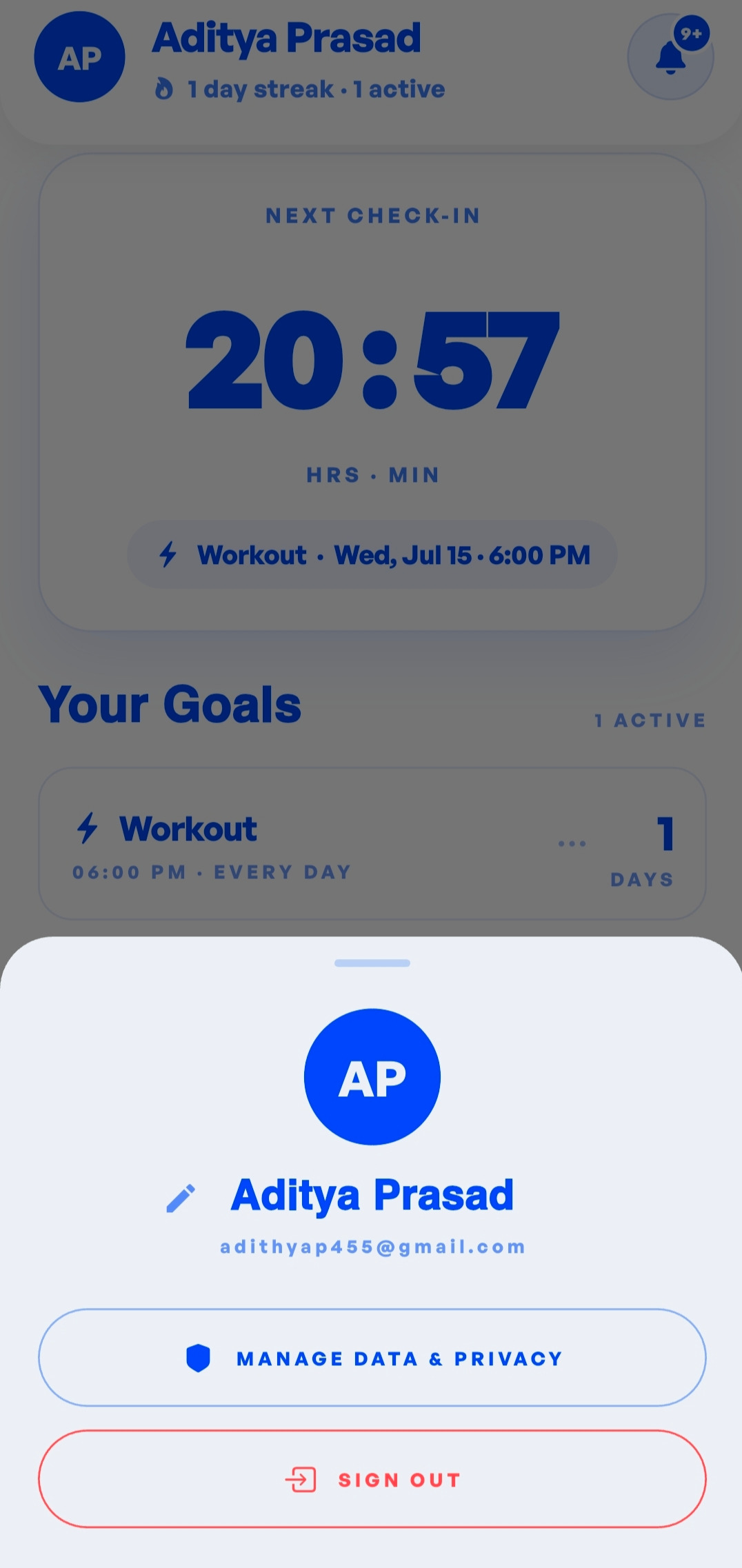
Settings Screen
Data & Privacy Settings Screen showing 'Delete Account' section with a red
warning banner and 'DELETE MY ACCOUNT' button.
assets/images/guides/account-deletion-step1.png
Step 2: Tap "Delete My Account"
- Scroll down to the bottom of the Data & Privacy page to find the DELETE ACCOUNT section.
- Read the warnings detailing the permanent loss of goals, streaks, photos, and recaps.
- Tap the red DELETE MY ACCOUNT button.
Step 3: Confirm the First Warning Dialog
- A confirmation dialog will pop up stating: "Are you sure you want to permanently delete your account and all associated data? This action cannot be undone."
- Tap Continue to proceed (or Cancel if you change your mind).
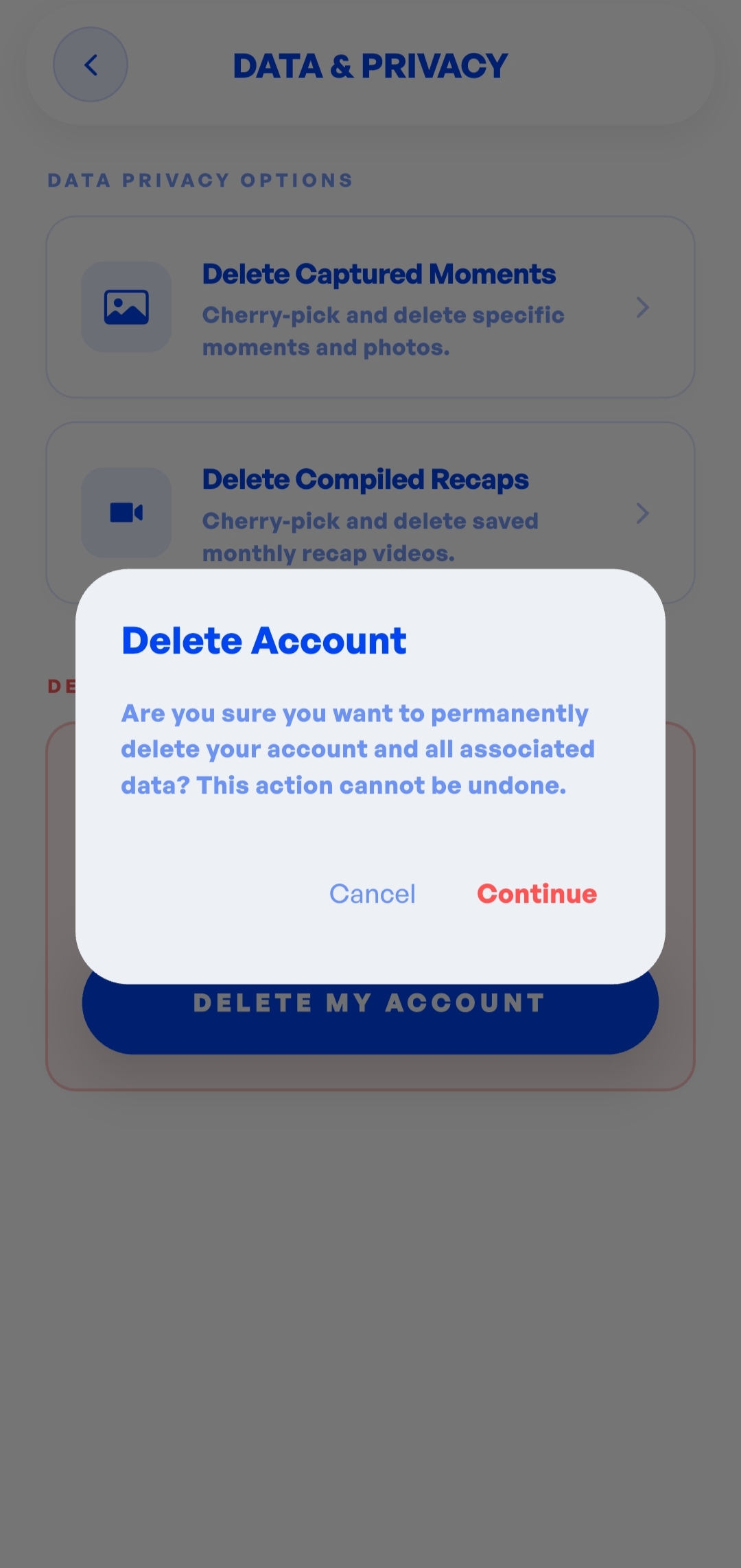
First Confirmation Pop-up
First confirmation pop-up dialog with 'Cancel' and 'Continue' buttons.
assets/images/guides/account-deletion-step3.png
Step 4: Type "DELETE" to Confirm
- A second verification dialog will appear to prevent accidental deletions.
- Tap the text input field and type the word DELETE in all capital letters.
- Once typed correctly, the DELETE PERMANENTLY option will become active.
- Tap DELETE PERMANENTLY.
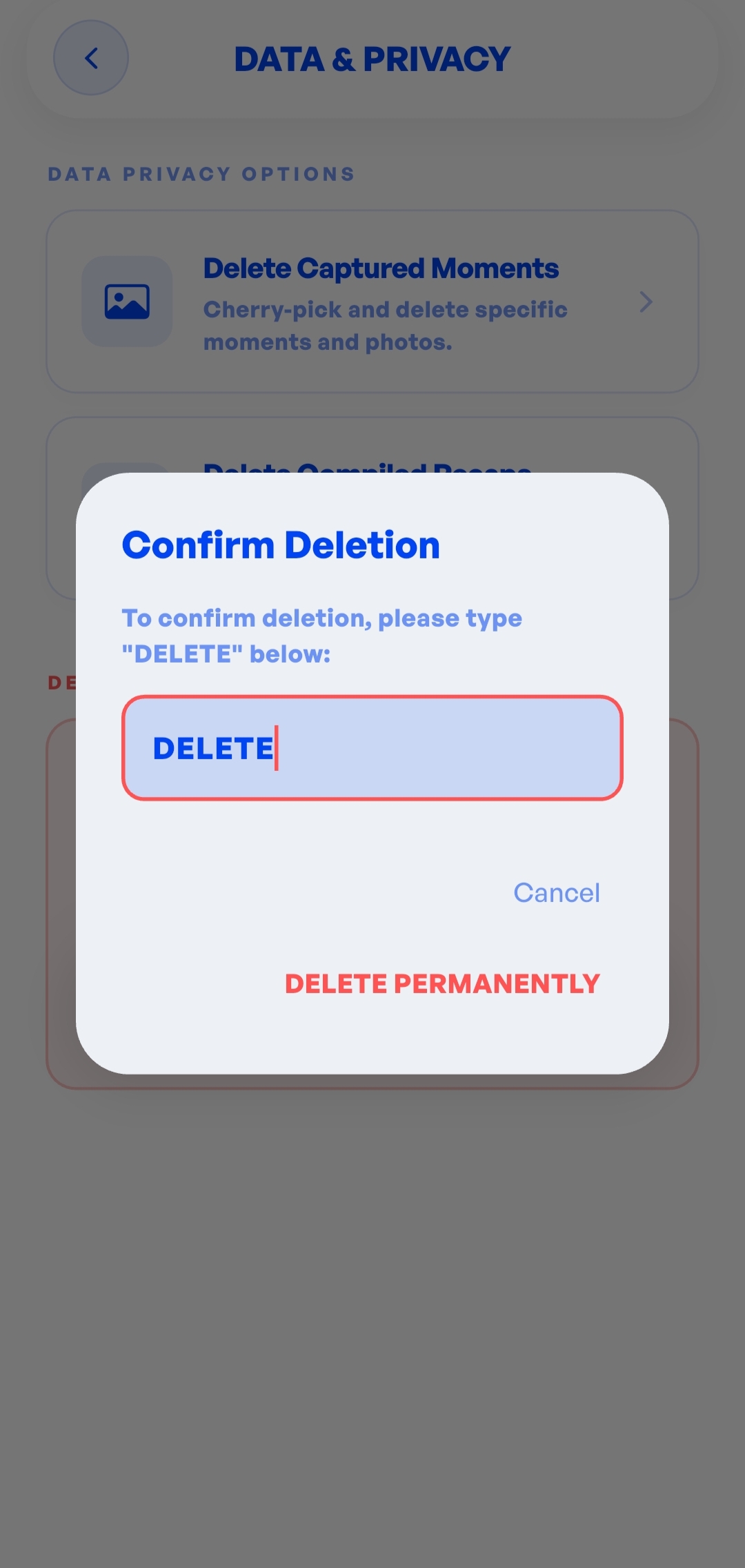
Second Verification Dialog
Second verification dialog asking to type 'DELETE' in a text field, with the
'DELETE PERMANENTLY' button highlighted in red.
assets/images/guides/account-deletion-step4.png
Step 5: Wait for Completion
- A loading overlay showing DELETING ACCOUNT... will appear while our backend safely erases your data.
- Once complete, you will be automatically signed out and redirected back to the login screen.
Troubleshooting & Security Requirements
"Requires Recent Login" Error
For sensitive operations like account deletion, authentication services require a fresh sign-in to verify your identity.
NOTICE: If you receive an error stating: "For security reasons,
this action requires recent authentication." please follow the re-authentication process below.
Please follow these steps:
- Tap OK on the error dialog.
- Go back to your settings and Sign Out of the Steady app.
- Sign back in using your email or Google Account.
- Repeat the deletion steps above immediately.