Steady · Same time tomorrow.
Data Deletion Guide
Guides & Support
If you want to clear specific records, photos, or goals from your history but keep your Steady account and streak active, you can selectively delete individual components.
This guide details how to delete:
- Captured Moments & Progress Photos
- Compiled Monthly Recap Videos
- Individual Goals & Schedules
1. Delete Captured Moments (Photos & Records)
This option allows you to cherry-pick and permanently erase individual check-in photos and text entries.
Step-by-Step:
- Open the Steady app and navigate to Data & Privacy (via settings).
- Tap on the Delete Captured Moments card.
- You will be presented with a grid showing all your recorded moments.
- Tap on the thumbnails of the moments you want to erase. A checkmark will appear on the selected items.
- Once your selection is ready, tap the floating button at the bottom: DELETE SELECTED (N).
- A confirmation prompt will ask: "Are you sure you want to delete the selected moment(s)? This will permanently erase their images and records."
- Tap Delete to permanently erase the selected moments.
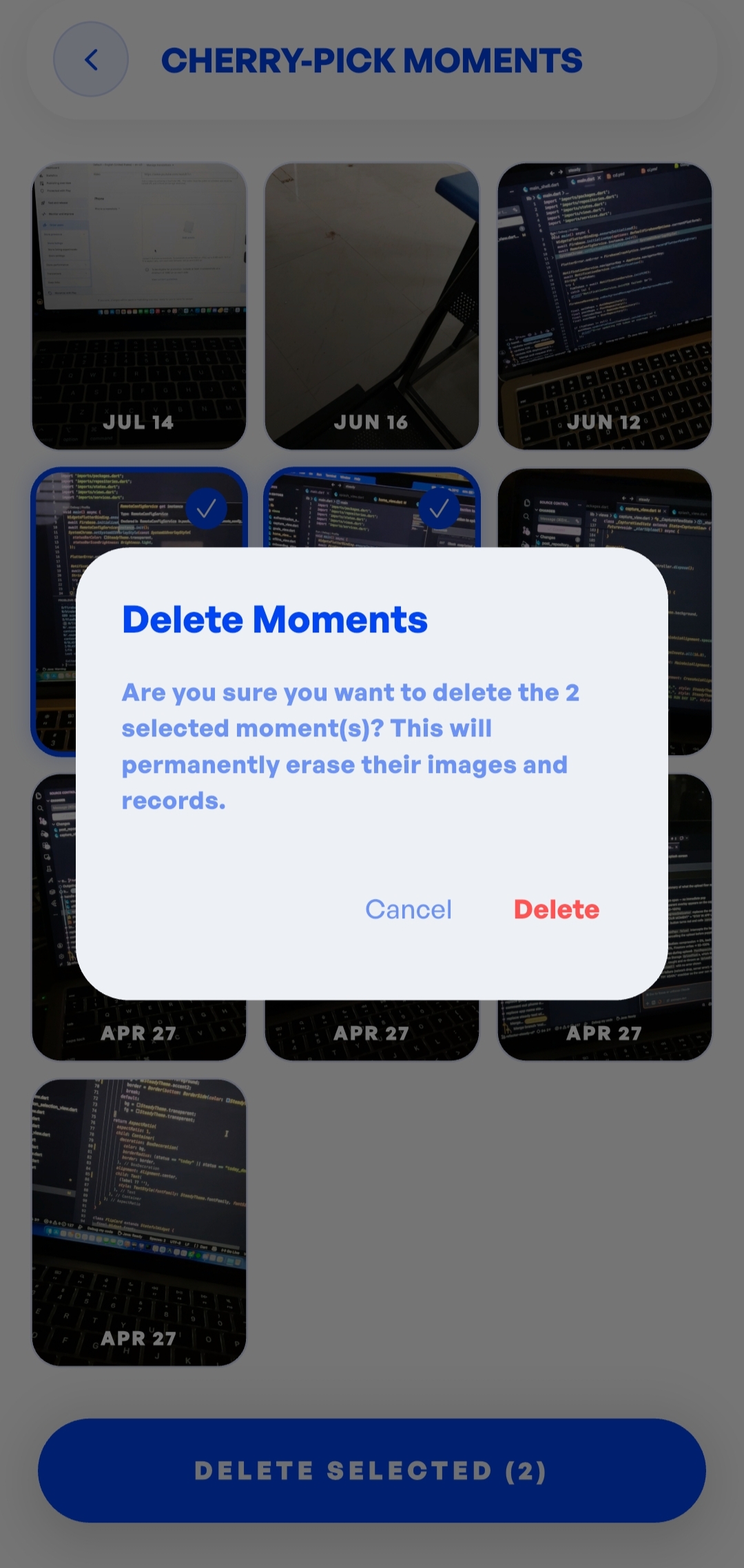
Captured Moments Grid
Grid view of captured moments showing select checkmarks on two photos and a red 'DELETE SELECTED (2)' button at the bottom.
assets/images/guides/data-deletion-moments.png
2. Delete Compiled Recaps (Monthly Videos)
If you want to clear out space or delete generated monthly recaps while preserving your raw photo moments, you can manage your recap video files separately.
Step-by-Step:
- Open the Steady app and navigate to Data & Privacy (via settings).
- Tap on the Delete Compiled Recaps card.
- You will see a list of your generated recap MP4 files categorized by date.
- Tap on any recap files you want to delete to highlight them.
- Tap the floating button: DELETE SELECTED (N).
- Confirm by tapping Delete in the pop-up warning dialog.
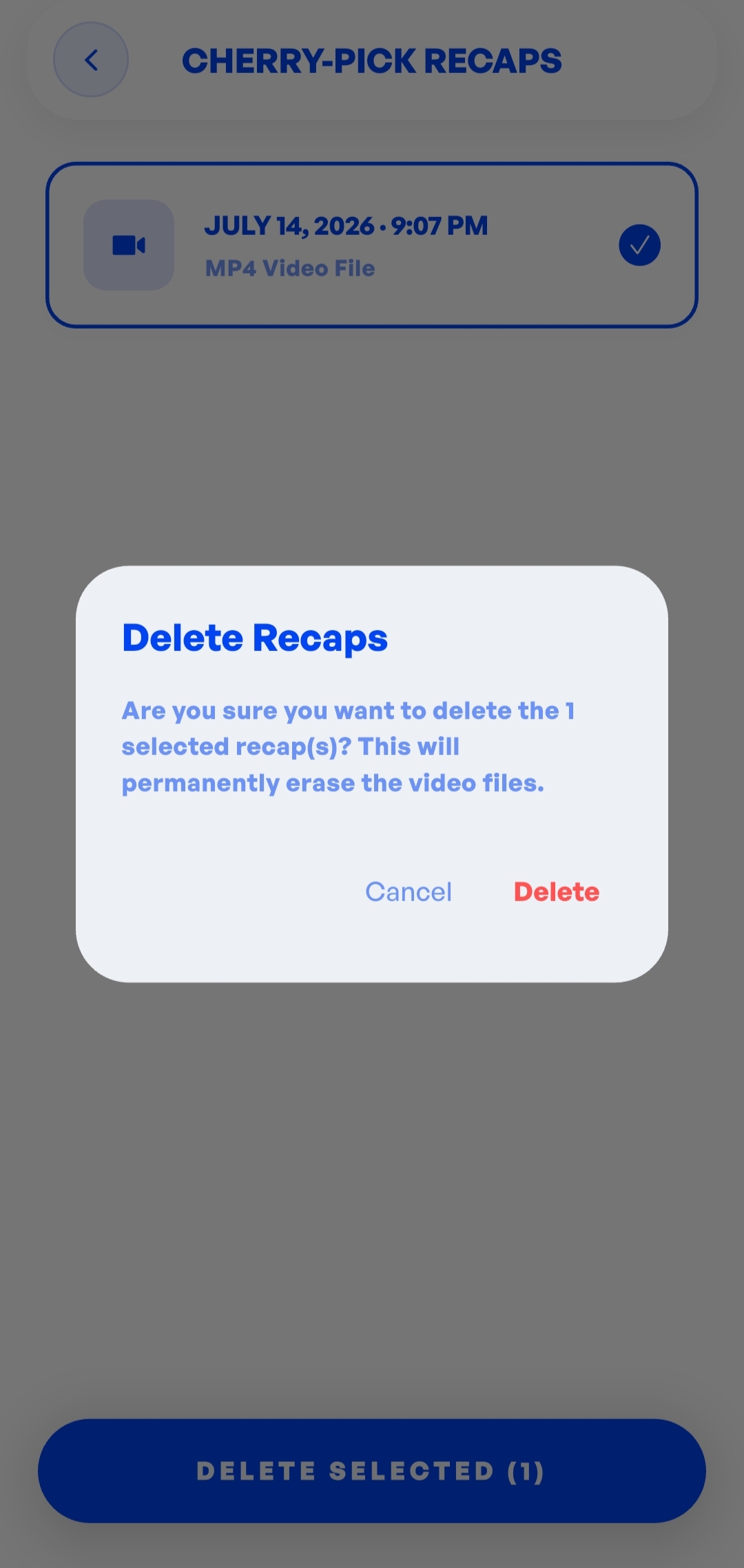
Compiled Recaps List
List of monthly recap MP4 files with select icons and a 'DELETE SELECTED' action bar.
assets/images/guides/data-deletion-recaps.png
3. Delete Individual Goals
Deleting a goal removes its schedule, reminder notifications, and deletes its configuration. Your overall account, streak progress, and unrelated goals will remain intact.
Step-by-Step:
- Go to the Home tab (dashboard) of the Steady app.
- Locate the goal card you wish to remove under Your Goals.
- Tap the ellipsis button (...) on the right side of the goal card.
- From the slide-up action sheet, tap the red trash bin option labeled Delete goal.
- A confirmation dialog will appear stating: "“Goal Name” will be removed. This can't be undone."
- Tap Delete to confirm.
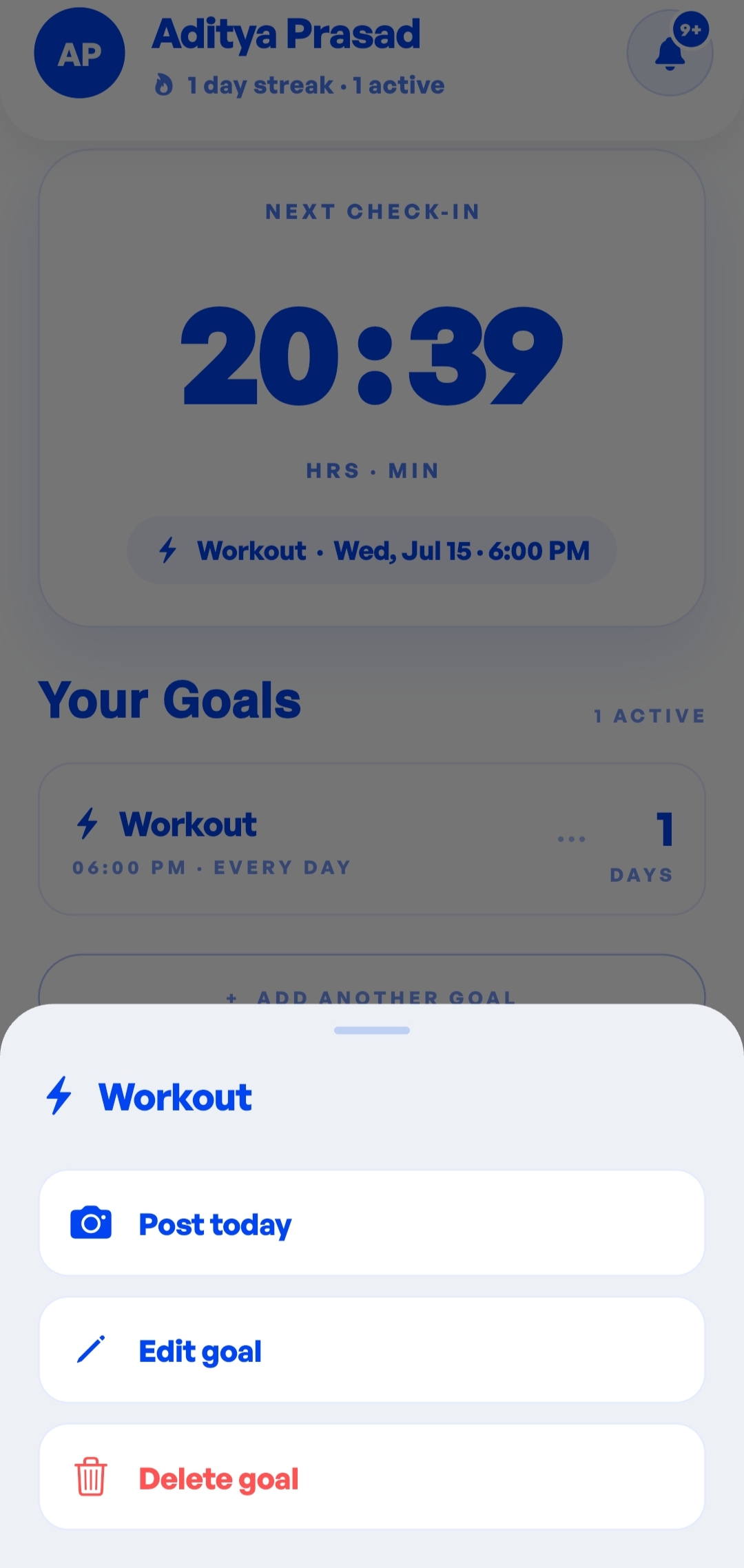
Goal Action Sheet
Bottom-sheet action menu containing 'Post today', 'Edit goal', and a red highlighted 'Delete goal' button.
assets/images/guides/data-deletion-goals.png